
Step by Step
- To print an Item Label or GTIN Label, locate and open the Items list page via the search function on Business Central.
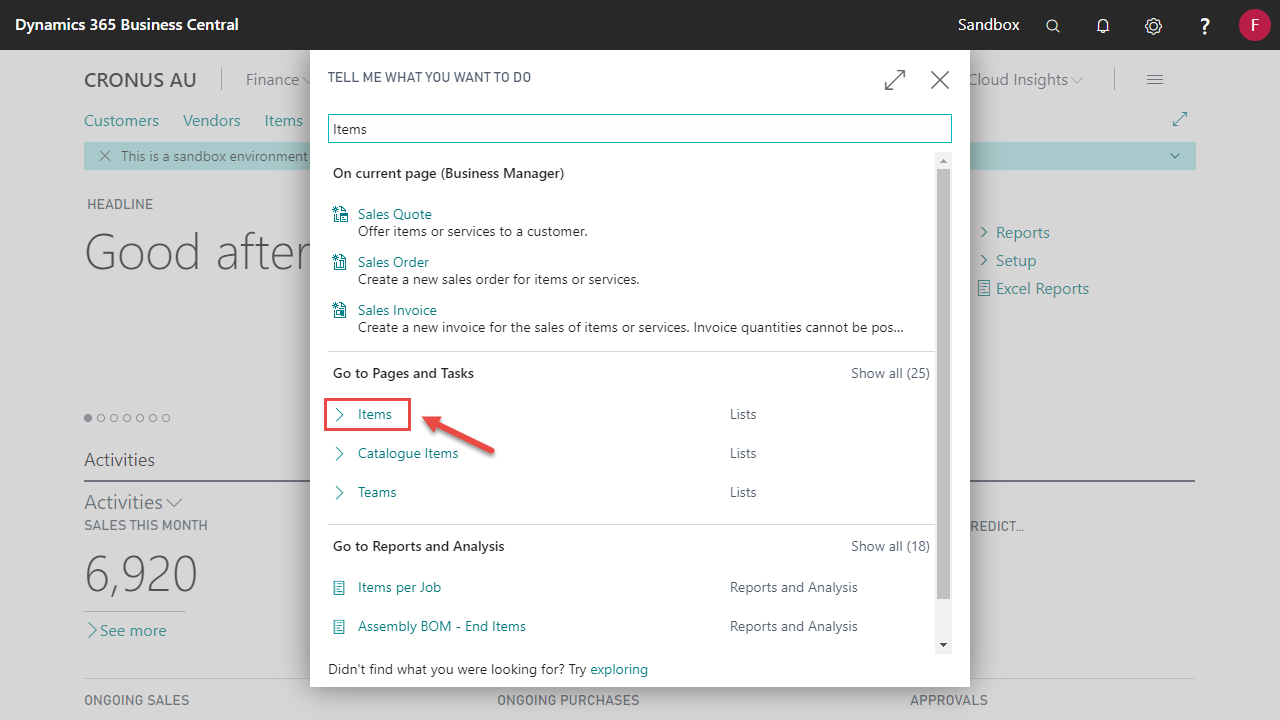
- Select an Item on the list to print a label for.

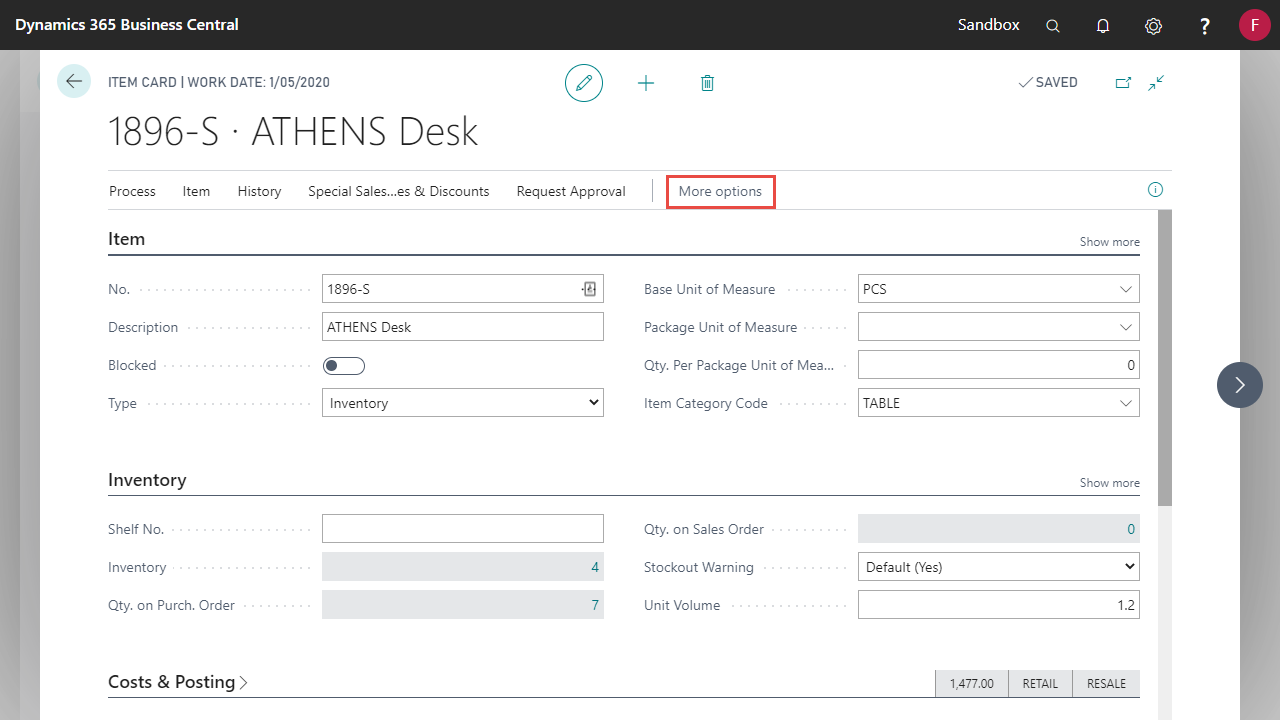
- Click More Options
- Under the Actions tab on the ribbon, select Print Item Label...
Note: The Print action will be hidden on the card & list pages if either Item or GTIN Label Code is blank in Label Setup.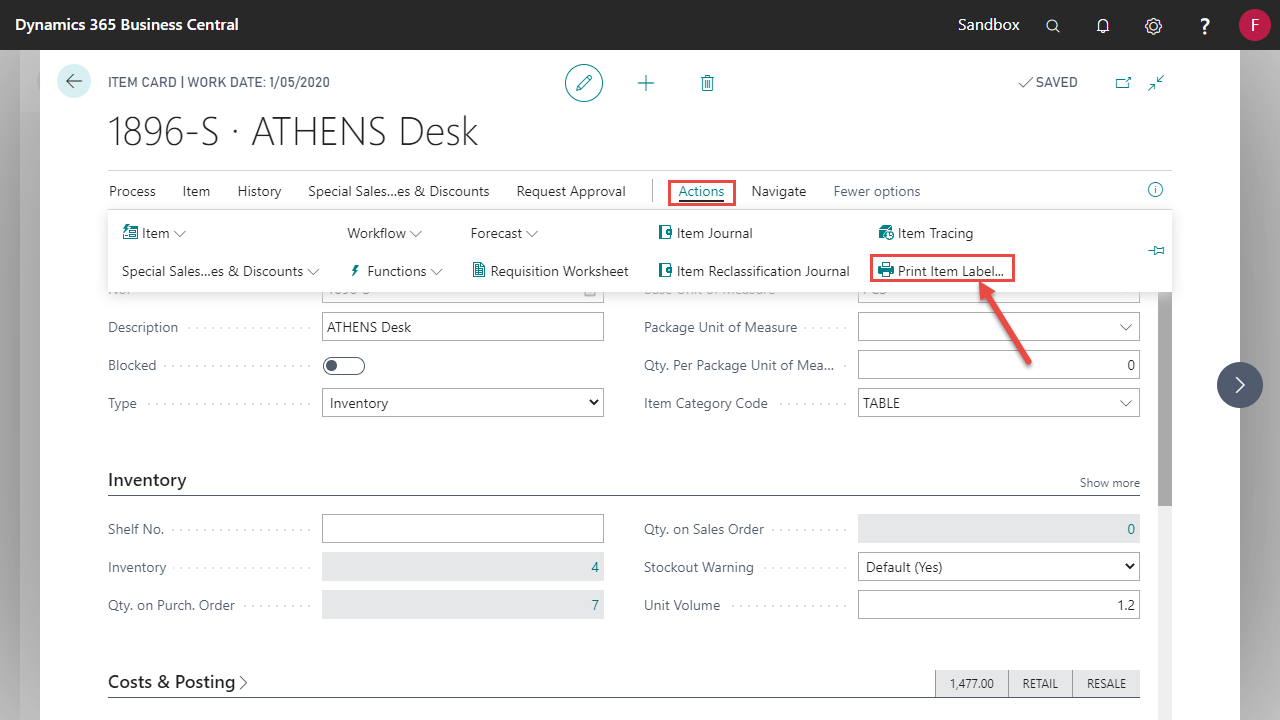
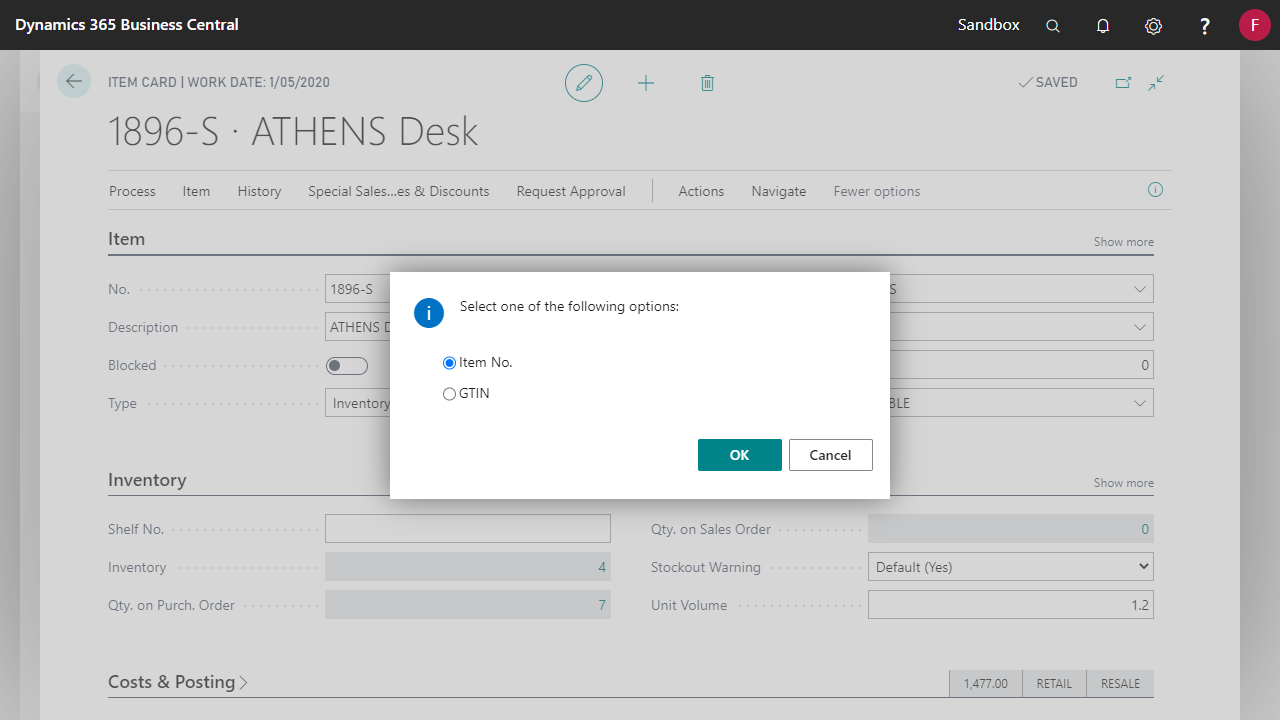
- Select between the Item or GTIN label to print and click OK.
- Both GTIN and No. of the current Item are sent to the label when selecting the GTIN option.
- Only the No. of the current Item is sent to the label when selecting the Item option.
- Fill in the Printer Code fields if empty and click OK
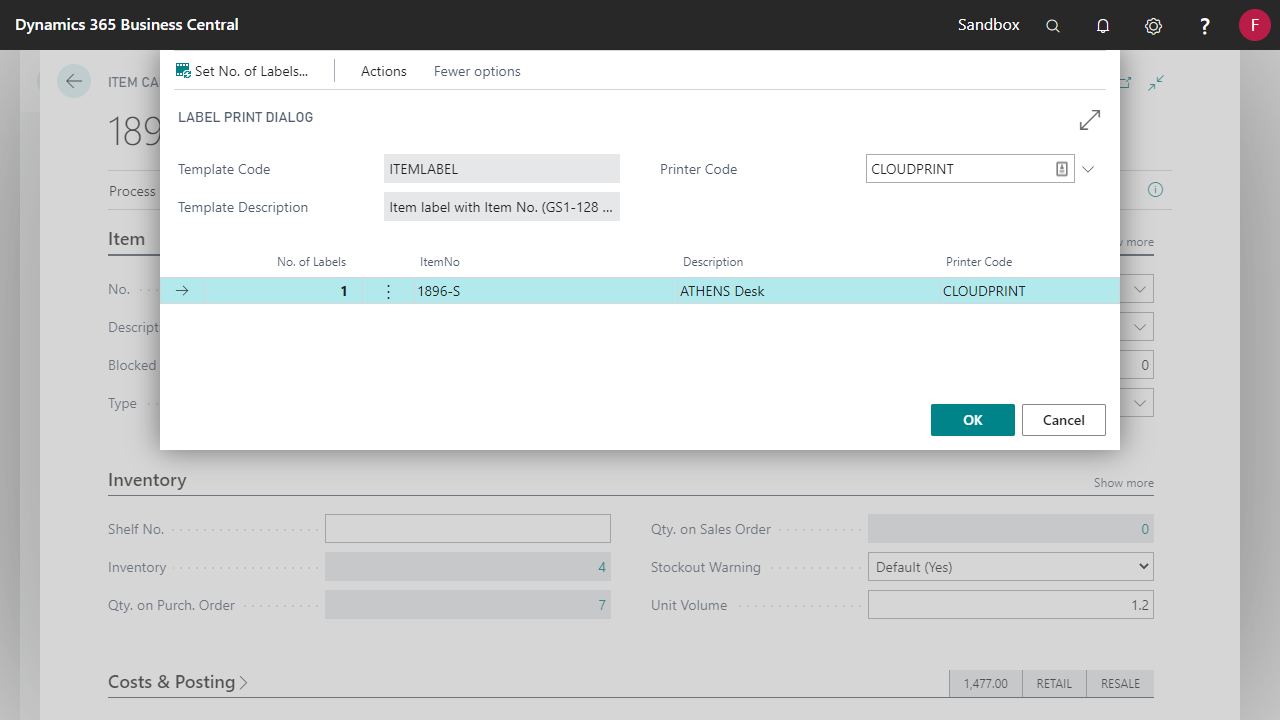
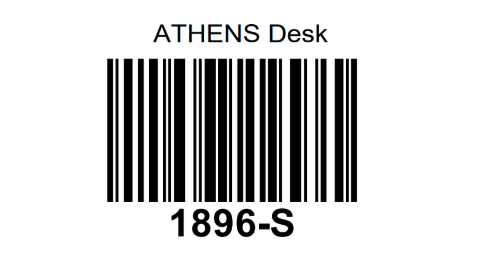
- If successful a label template will download within the browser. It should look like the following when opened.
- Item label
- GTIN label
- Item label
- You can print multiple Item labels at once from the Item List.
Comments
0 comments
Please sign in to leave a comment.